In focus
 Suno / Studio
AI songwriting meets the production session. Explore the actual Studio environment alongside our creative workflow ideas.
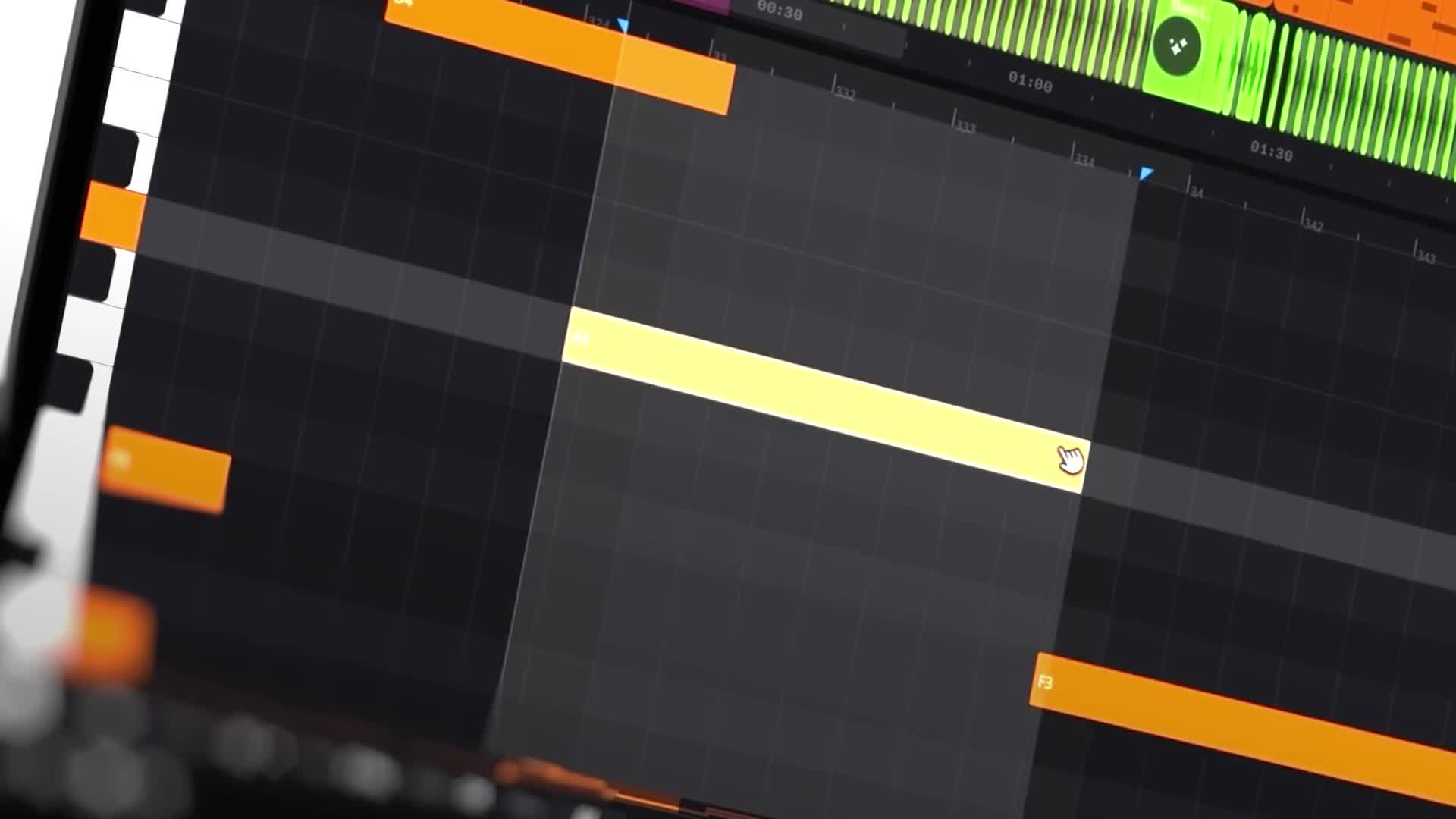
Suno Studio’s listed export options include individual stems, while Logic Pro offers harmonic analysis and Session Players inside a conventional production environment. Together, those capabilities suggest a hybrid approach: explore in one environment, then develop selected material in another. Suno Studio ↗
That is a workflow possibility—not a claim of automatic integration between the products.
Give Each Stage a Purpose
Start by naming what the AI sketch is for. It might be a structural experiment, an instrumental texture, or a way to compare two stylistic directions.
Once you have something useful, move only the material you need into the next stage. Check its timing and musical fit, then build around the strongest idea rather than preserving everything by default.
You might replace a generated bass part, record your own vocal, rewrite the bridge, or reduce a busy arrangement to a few essential elements.
The point is not to disguise how a track began. It is to make sure each stage brings the music closer to your intention.
A productive hybrid workflow has a clear handoff: exploration produces options; production turns selected options into a coherent record.
This article draws on the linked product sources. Creative workflow suggestions are editorial guidance, not a hands-on product test. Features and access can change. Read our editorial approach.